Sitefinity has a nice feature to auto-generate thumbnails. Although it works well most of the time, there are cases where it falls short - for example, when there are people in the image, the default cropping can cut off heads and faces. To illustrate, here is a photo of part of our team.
Original image:

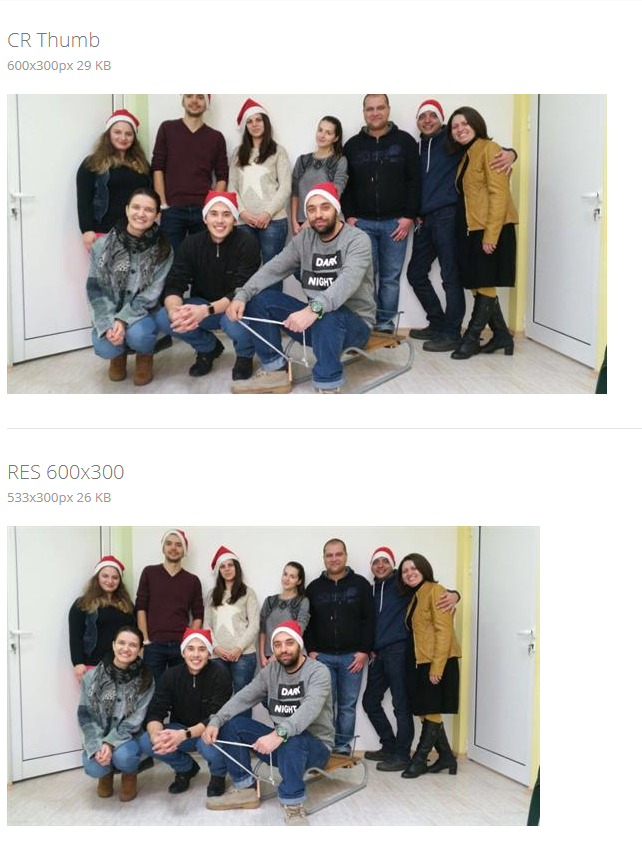
Default Sitefinity thumbnail crop:

You can see how the heads at the top of the photo are cropped. We could simply resize without cropping, but that gives a 533x300 thumbnail with smaller faces - not ideal when the goal is to focus on the festive smiles from our Christmas photo. The answer is Computer Vision.
Background - Machine Learning, Computer Vision and Facial Recognition
If you are not familiar with these fields, here is a quick overview:
- Machine Learning - the study of computer algorithms that improve automatically through experience, used to make predictions or decisions without being explicitly programmed. Wikipedia
- Computer Vision - an interdisciplinary field dealing with how computers gain high-level understanding from digital images or videos, transforming visual images into meaningful descriptions. Wikipedia
- Facial Recognition - technology capable of identifying or verifying a person from a digital image by comparing facial features against a database. Wikipedia
Setting Up the Project
We will use the Quantum sample project, available on GitHub with setup instructions: github.com/Sitefinity/Telerik.Sitefinity.Samples.Quantum
For computer vision we will use the popular OpenCV library, which has a .NET wrapper:
Install the required NuGet packages:
Install-Package OpenCvSharp4
Install-Package OpenCvSharp4.runtime.win
We will create a custom Image Processor for Sitefinity. For more details see the Sitefinity Image Processing API documentation.
The Custom Image Processor
Registering the Processor in Global.asax.cs
Once the class is implemented, register it on Bootstrap in Global.asax.cs:
protected void Application_Start(object sender, EventArgs e)
{
    Bootstrapper.Initialized += Bootstrapper_Initialized;
}

void Bootstrapper_Initialized(object sender, Telerik.Sitefinity.Data.ExecutedEventArgs e)
{
    if (e.CommandName == "Bootstrapped")
    {
        ObjectFactory.Container.RegisterType<IImageProcessor, FaceRecognitionImageProcessor>(
            new ContainerControlledLifetimeManager());
    }
}
OpenCV in Action

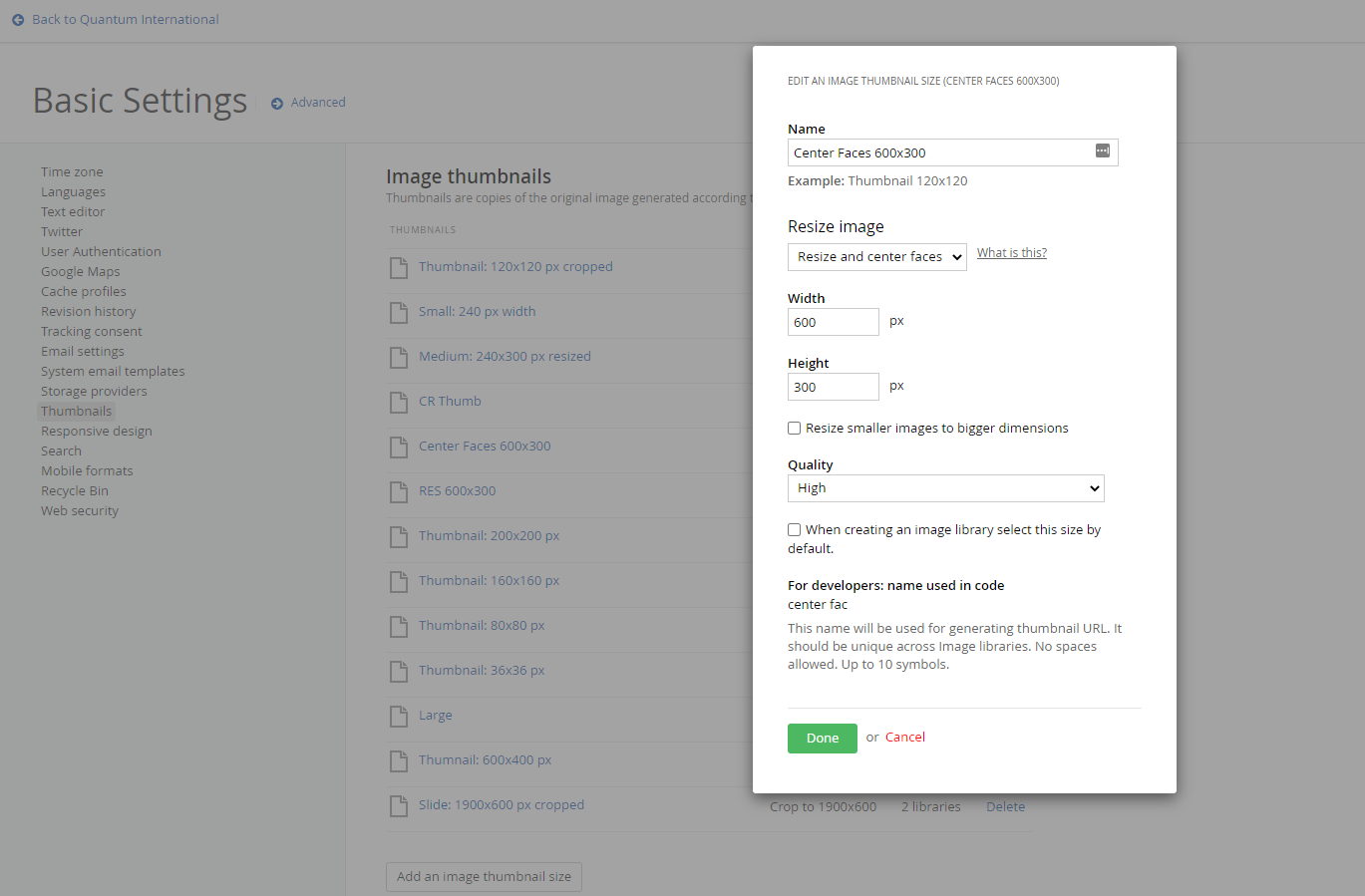
To configure a thumbnail profile using the custom processor:
- Go to Administration - Settings - Thumbnails
- Create a new thumbnail profile
- In the "Resize image" dropdown, choose "Resize and center faces" (this is our custom image processor)
- Enter 600 for Width
- Enter 300 for Height
- Save
The Result
Here is the thumbnail generated by our custom image processor - all faces are visible and centred:

And here are thumbnails from the built-in Sitefinity processor at the same 600x300 size - cropped and resized - for comparison:
Note: Keep in mind this is an example of how Computer Vision can be used for better image manipulation. You may need to fine-tune the code or even train a custom model to better suit your specific use case.
Related Posts

Five Questions Your Azure Should Answer Every Week
If your team cannot answer five specific questions about your Azure subscription in one place, on de...
Chameleon: Custom JSON to Sitefinity Migration is Now Live
The first live production migration of custom system data into Sitefinity using Chameleon - 200+ mul...

CVE comparison: WordPress vs Sitefinity vs Umbraco vs Sitecore - the SecOps angle most miss
A single random week of NVD data showed 24 CVEs touching WordPress and zero touching Sitefinity, Umb...